
 info@macroagilityinc.com
 416-900-7804

Most iManage environments need a bulk import at some point. A shared drive holds years of matter files, a legacy system needs to be retired, or a new group joins the firm with its own documents. The question is how to get that content into iManage Work quickly, without losing the structure and information that make it useful.
The short answer
You can bulk import documents into iManage Work in two main ways: copy folders in through iManage Drive, or use a dedicated import tool. Drive suits a one-off move of a manageable set of folders. A dedicated tool is the better choice when you need to import large volumes, apply profile information and security as you go, retry failures, or keep importing new files over time.
Why firms bulk import into iManage
The usual triggers are:
- A network file share that holds years of matter files
- Content coming from a legacy document management system
- A merger, a lateral hire or a new office that brings its own documents
- A new workspace that needs existing documents loaded into it
Importing once is rarely the whole story. Work keeps arriving, so most teams also need a repeatable way to bring in new material.
Option 1: Import folders with iManage Drive
iManage Drive lets users copy folders from their native location into iManage Drive, and the folders then sync to iManage Work. According to iManage’s help documentation for importing folders in bulk (Drive for Windows 10.12), a few points are worth knowing before you rely on it:
- One bulk import at a time. You cannot start another until the current content has synced or been discarded.
- Changes wait for the sync. You can keep working while the copy runs, but document changes only sync after the folder import finishes syncing.
- Direct sync from version 10.11.0. Folder imports can sync directly to the iManage Work server when the first folder holds more files than a set threshold. iManage says this avoids a backlog and saves local disk space.
- Failed files are listed. The error report gives reasons. For example, a file without an extension cannot be synchronized. You can save the report.
Administrators can also set limits for bulk imports. The defaults documented on iManage’s admin page for bulk import options are:
| Limit | Default |
|---|---|
| Folders per bulk import | 1,000 |
| Files per bulk import | 20,000 |
| Folders imported into one workspace | 10,000 |
| Files imported into one workspace | 100,000 |
| Total size limits (per import and per workspace) | 0, which means no limit |
Setting any limit to 0 turns it off. When a limit is reached, Drive shows an error. These settings can differ by release, so check the documentation for your version and talk to your iManage administrator before a large import.
The Drive help pages do not describe how profile information is applied during a bulk import. If every imported document needs the right author, profile fields or access rules, plan for that separately.
Option 2: Use a dedicated import tool
A dedicated tool makes sense when the job is bigger or more demanding than a folder copy. When you compare tools, look for the ability to:
- Keep the source folder structure or import documents only, as you choose
- Apply profile information and security during the import
- Run in parallel to speed up large imports
- Retry only the files that failed
- Roll back an import job
- Pick up new or modified files after the first run
- Work through the iManage Universal API
How Import Master works
Import Master from MacroAgility streamlines the transfer of documents and folders into iManage Work. It can preserve the directory structure while applying profiles and security settings. Based on the product datasheet:
- Collecting files: select everything, or include and exclude specific extensions or paths.
- Import options: maintain the folder structure, or import documents only.
- Rollback job: undo an import job and remove the imported documents from iManage Work.
- Retry error: reprocess files that failed in the first pass.
- Faster import: adjust the thread count for parallel processing.
- Author and operator: inherit them from the import folder or define them yourself.
- Automation: automated imports and updates to iManage Work with new or modified files.
- Sources: network file shares and legacy systems, and suited to new-employee onboarding.
- Certified with the iManage Universal API and delivered as an iManage extension.
A practical plan for a bulk import
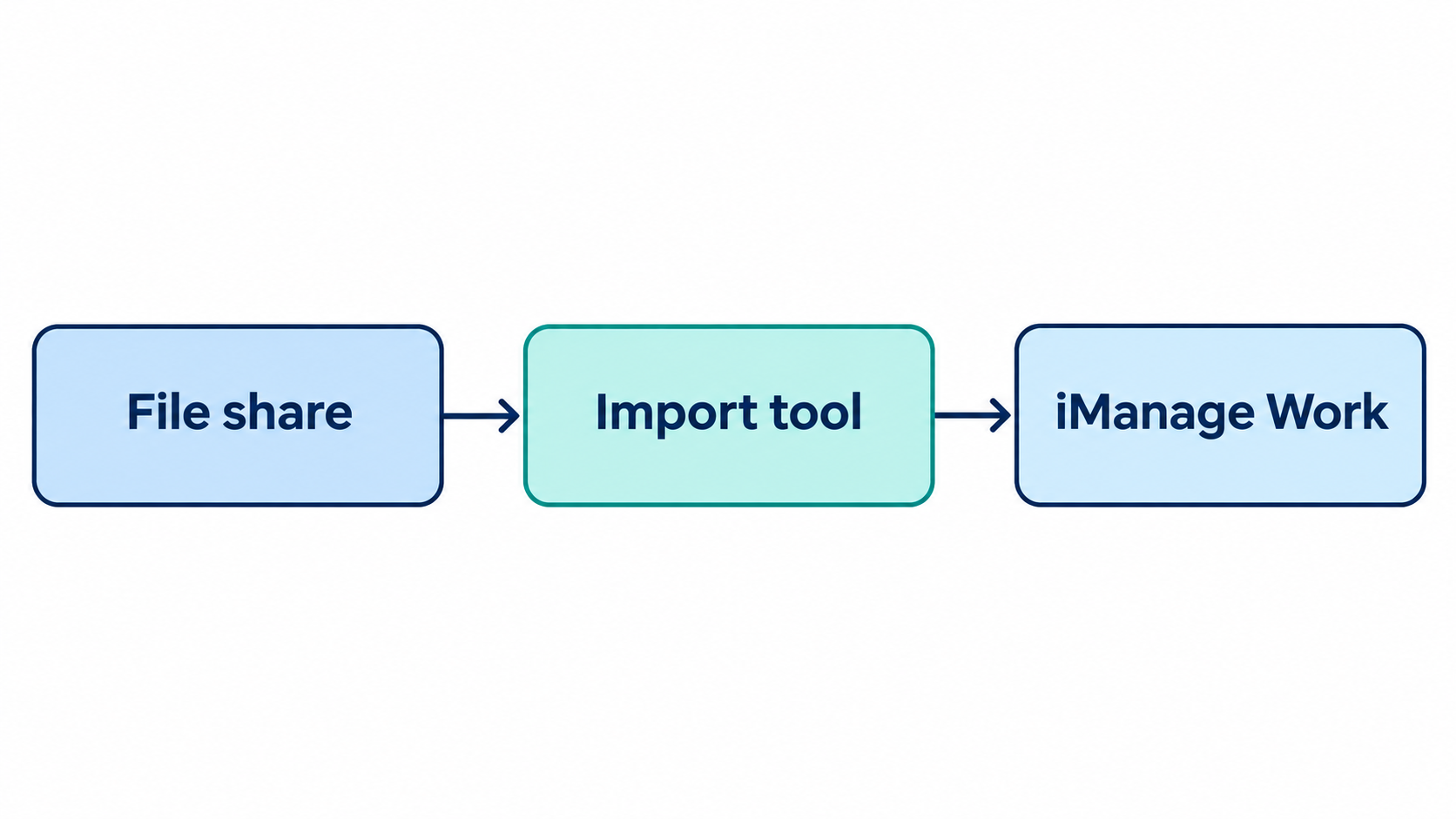
- Decide what should move. Remove duplicates, temporary files and anything you are not required to keep.
- Create the destination first. Set up the workspaces and folders that will receive the documents. A tool such as Workspace Generator can create workspaces automatically from your firm’s time and billing system, using templates from the iManage Control Center.
- Choose the structure. Keep the source folder structure, or import documents only.
- Set the rules. Decide who the author and operator will be, and which profile and security rules apply.
- Test a small batch. Ask someone who knows the content to check what landed in iManage.
- Run the full import in batches and watch for errors.
- Retry failures and reconcile. Compare counts between the source and iManage.
- Keep a rollback option until the results are signed off.
- Plan for new files. Decide how content added after the first import will be brought in.
Common mistakes to avoid
- Treating a one-time import as the whole project, when files keep arriving
- Importing before the workspace structure exists
- Ignoring the failed-files report
- Hitting administrator limits without knowing they exist
- Skipping the test batch
When bulk import is part of a bigger move
If you are moving content from another platform or a file share as part of a move to iManage, bulk import is one step in a larger plan. See our FileShare Migration tool and iManage Cloud migration services for the full picture.
Frequently asked questions
Can I import a whole folder structure into iManage Work?
Yes. With iManage Drive you copy folders into Drive and they sync to iManage Work. Import Master also offers a “Maintain Folder Structure” option, and a documents-only option if you do not want the original structure.
Is there a limit on how much I can import at once?
In iManage Drive, administrators set the limits. The documented defaults are 1,000 folders and 20,000 files per bulk import, and higher limits per workspace. Check your version and ask your administrator.
Can I undo an import?
Import Master includes a rollback job that removes the documents it imported from iManage Work. For other methods, agree on a rollback plan with your administrator before you start.
Get help with your import
MacroAgility can help you plan the import, set up workspaces and run it. Contact us to discuss your requirements or to request a demonstration of Import Master.
Sources: iManage Drive for Windows help, “Importing folders in bulk” (10.12) and “Options for bulk folder and file import” (admin, 10.12). Limits and behavior can change between releases.

 Phone
 Email